
Install walkthrough
A picture guide to installing ManxOS — clear, simple steps from the installer welcome screen through to your first sign-in.
Looking for the written checklist (USB, boot menu, dual-boot tips)? Start with the simple install guide.
This page walks you through what you will see on screen, one step at a time. You do not need to be technical — just follow along and click Next when you are ready.
Step 1 — Welcome
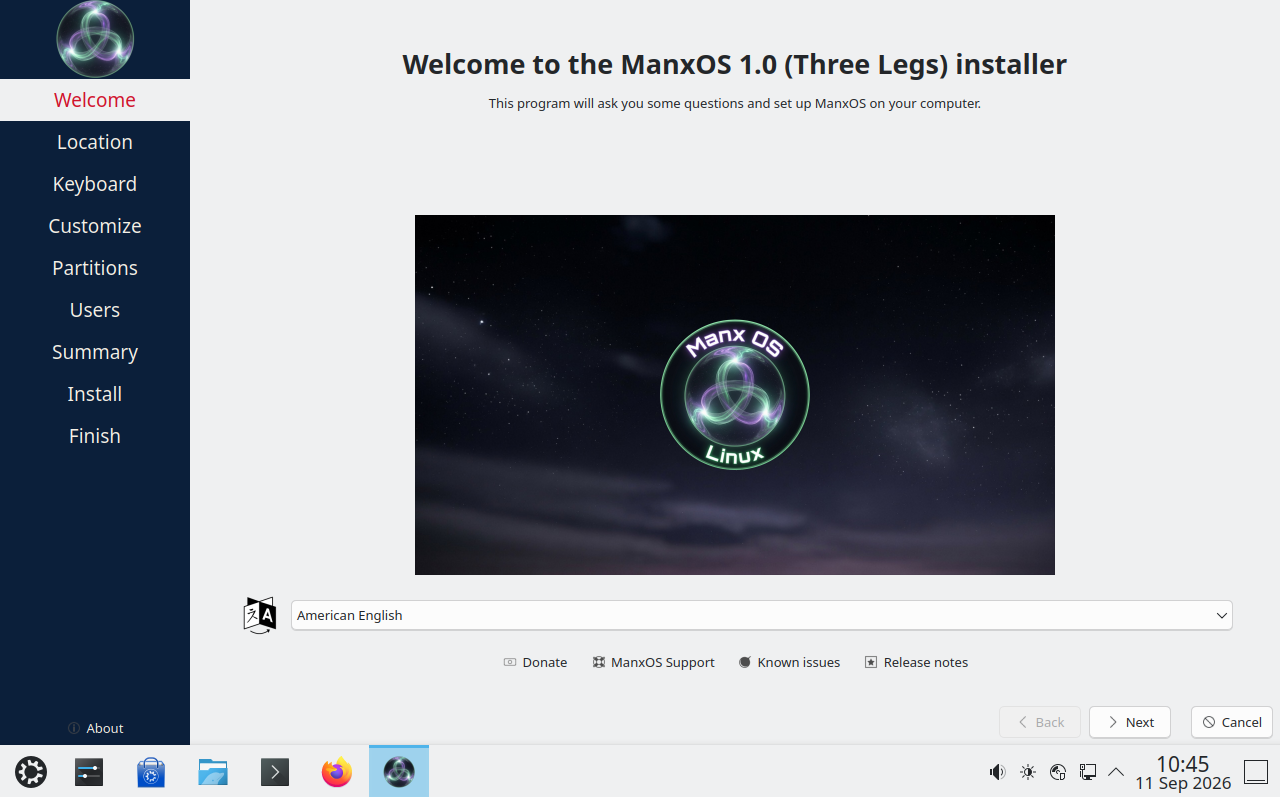
The installer greets you and lists the steps on the left. Pick your preferred language from the dropdown (for example British English), then click Next.
Step 2 — Location
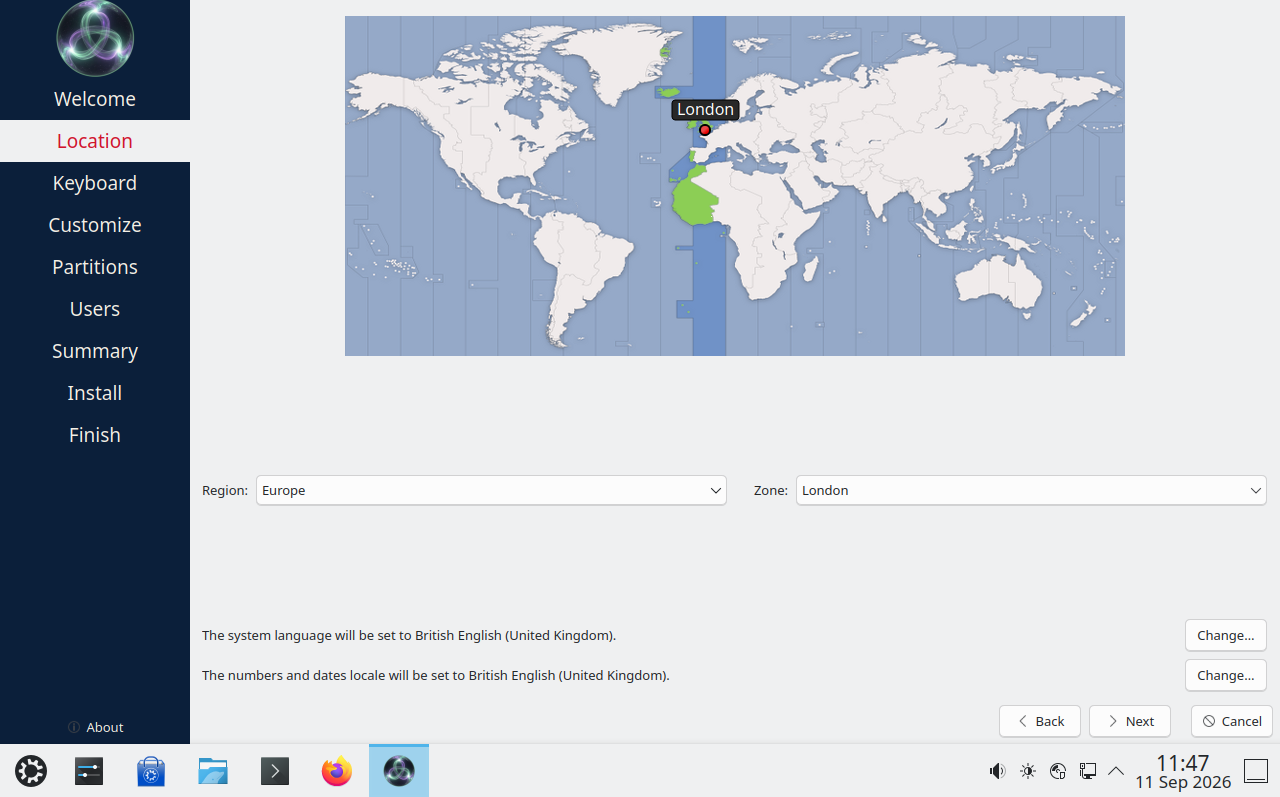
Choose where you are so the clock and date formats are right. Click the map or use the Region and Zone menus. Most people on the Island can leave this on Europe / London. Click Next when it looks correct.
Step 3 — Keyboard
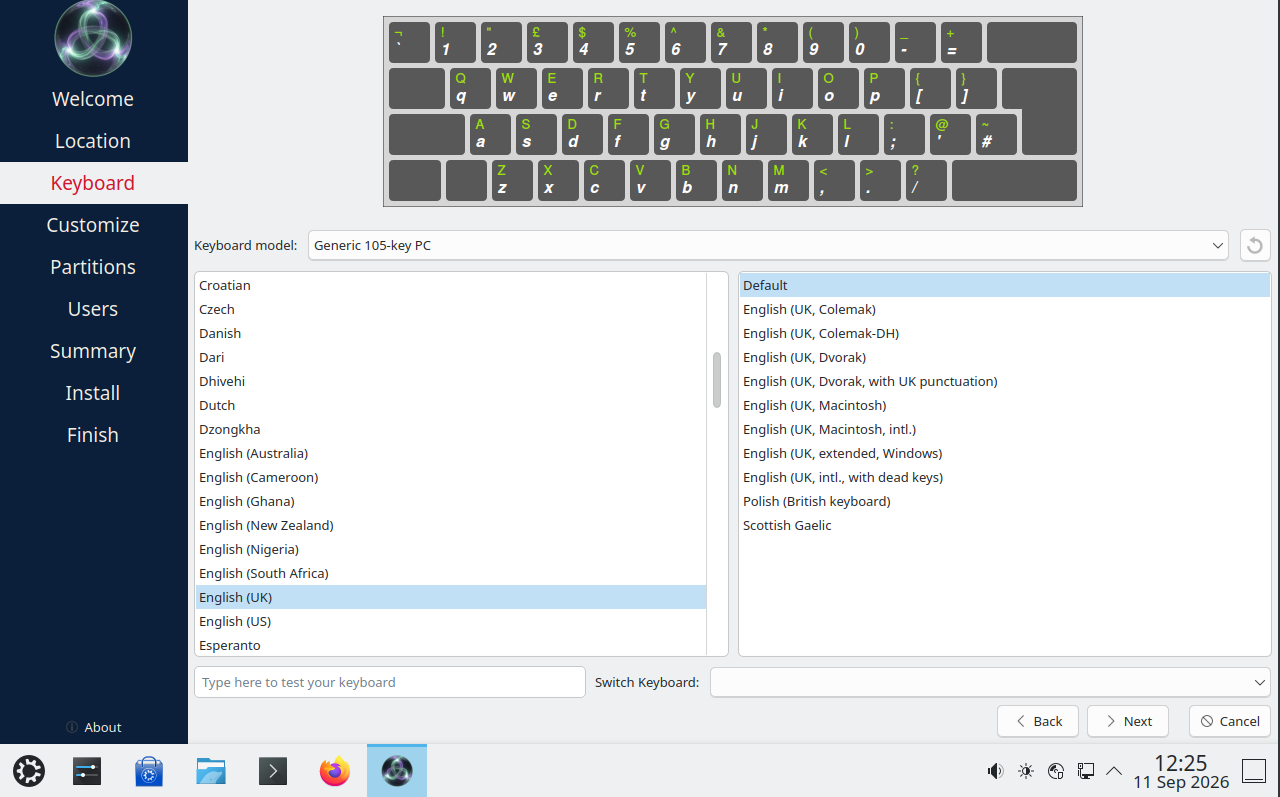
Select the keyboard layout that matches your machine — often English (UK). Type a few words in the test box to make sure the keys feel right, then click Next.
Step 4 — Customise what to install
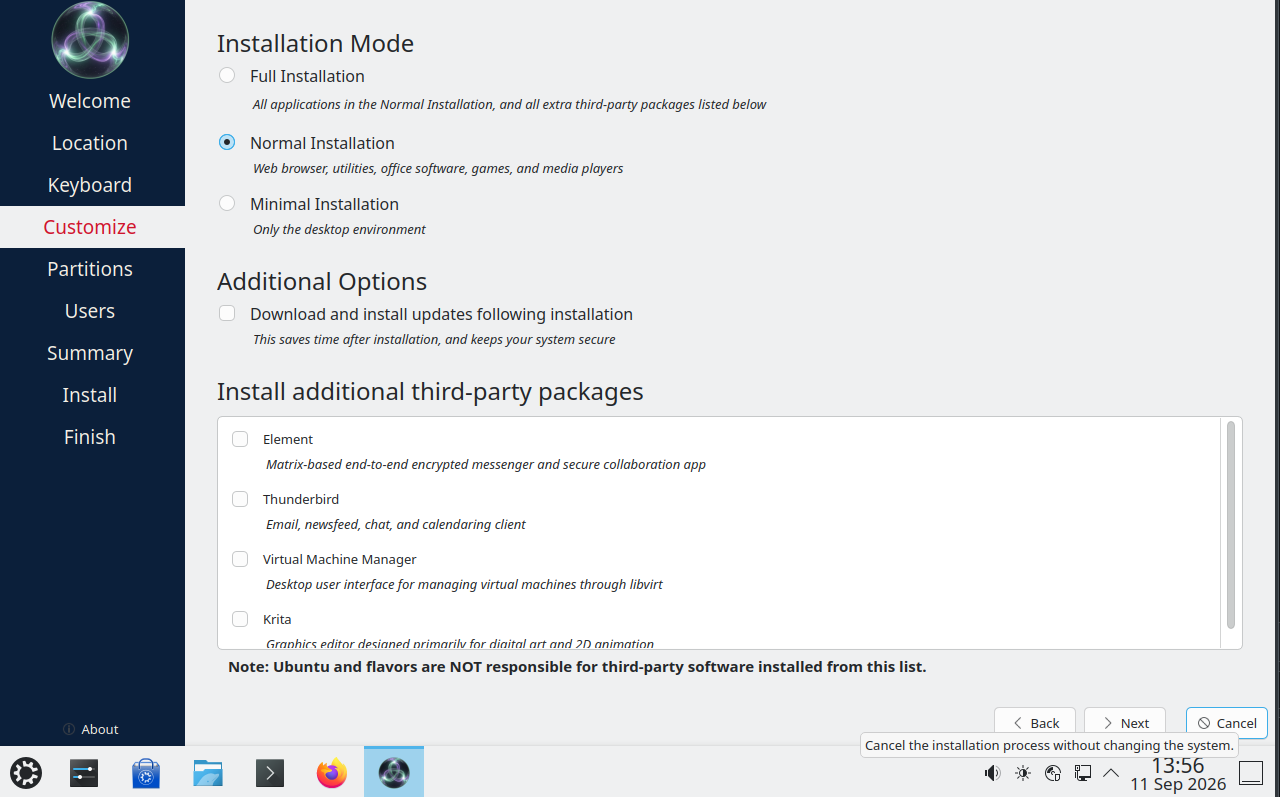
Pick how full you want the first install to be:
- Normal — a helpful everyday set of apps (a good default)
- Full — Normal plus extra tools
- Minimal — just the desktop
You can tick Download and install updates if you are online, and optionally add a few extra apps from the list. Then click Next.
Step 5 — Where to put ManxOS
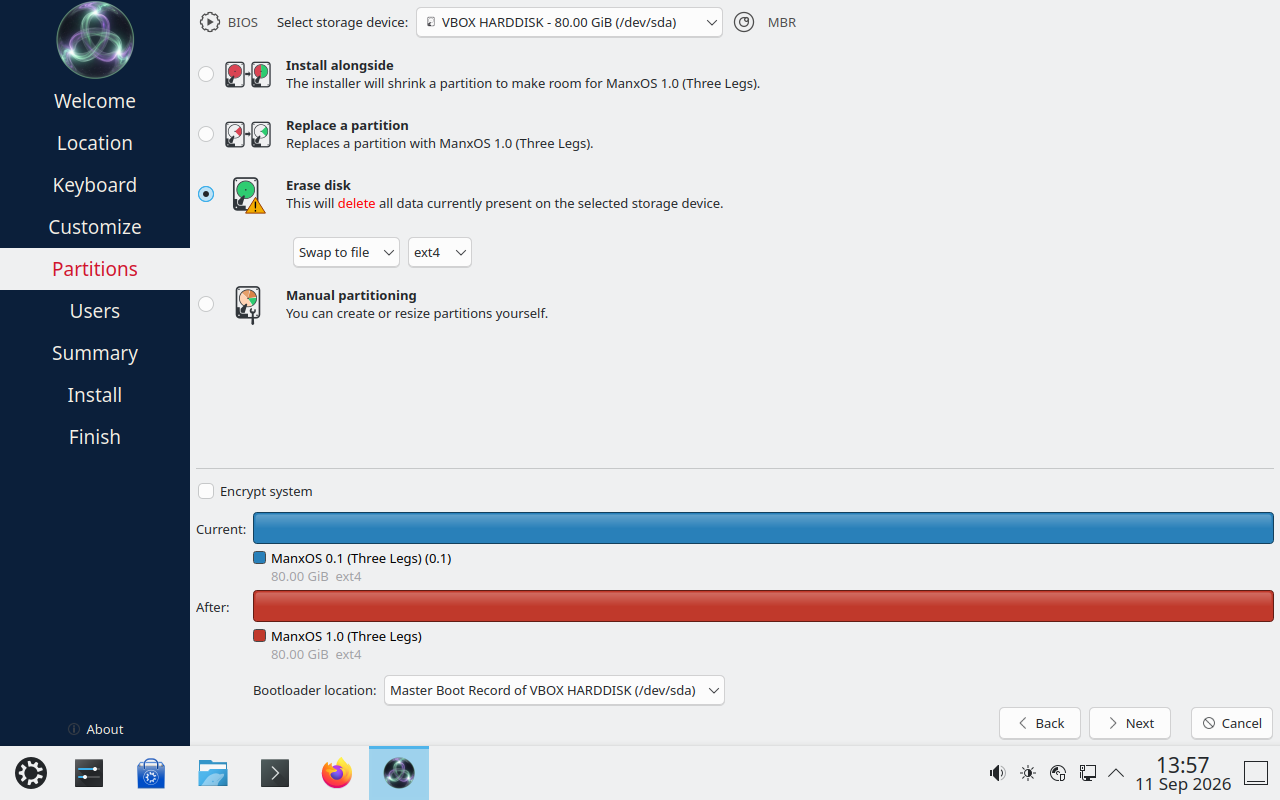
Choose the disk and how ManxOS should use it. Erase disk is the simplest choice for a machine that will only run ManxOS — it replaces what is on that disk. Other options let you install alongside another system or set things up by hand.
Take care: erasing a disk removes the files that are on it. If you are unsure, stop and ask someone you trust, or try ManxOS from the live USB first without installing.
Click Next when you are happy with the plan.
Step 6 — Your name and password
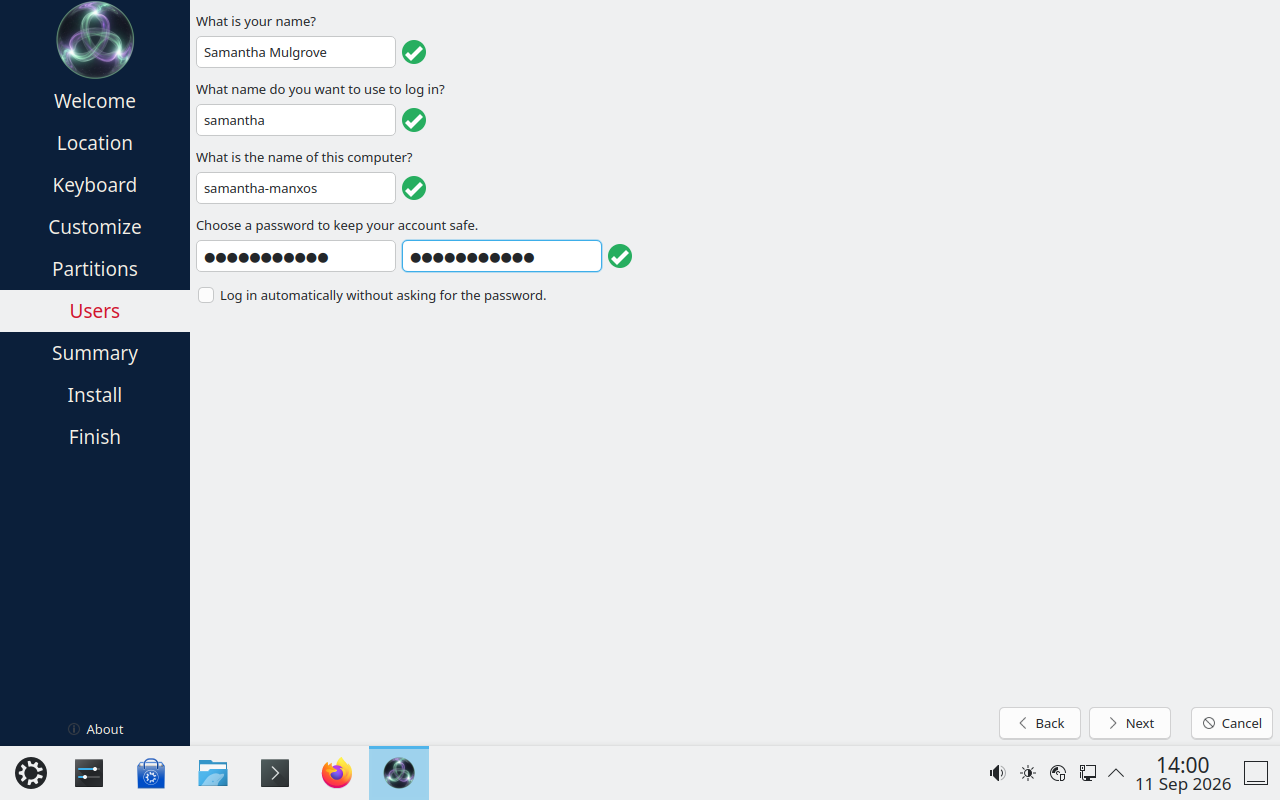
Enter your name, a short login name, a name for this computer, and a password you will remember. Leave Log in automatically unticked if you want to type your password each time you start the computer. Click Next.
Step 7 — Check the summary
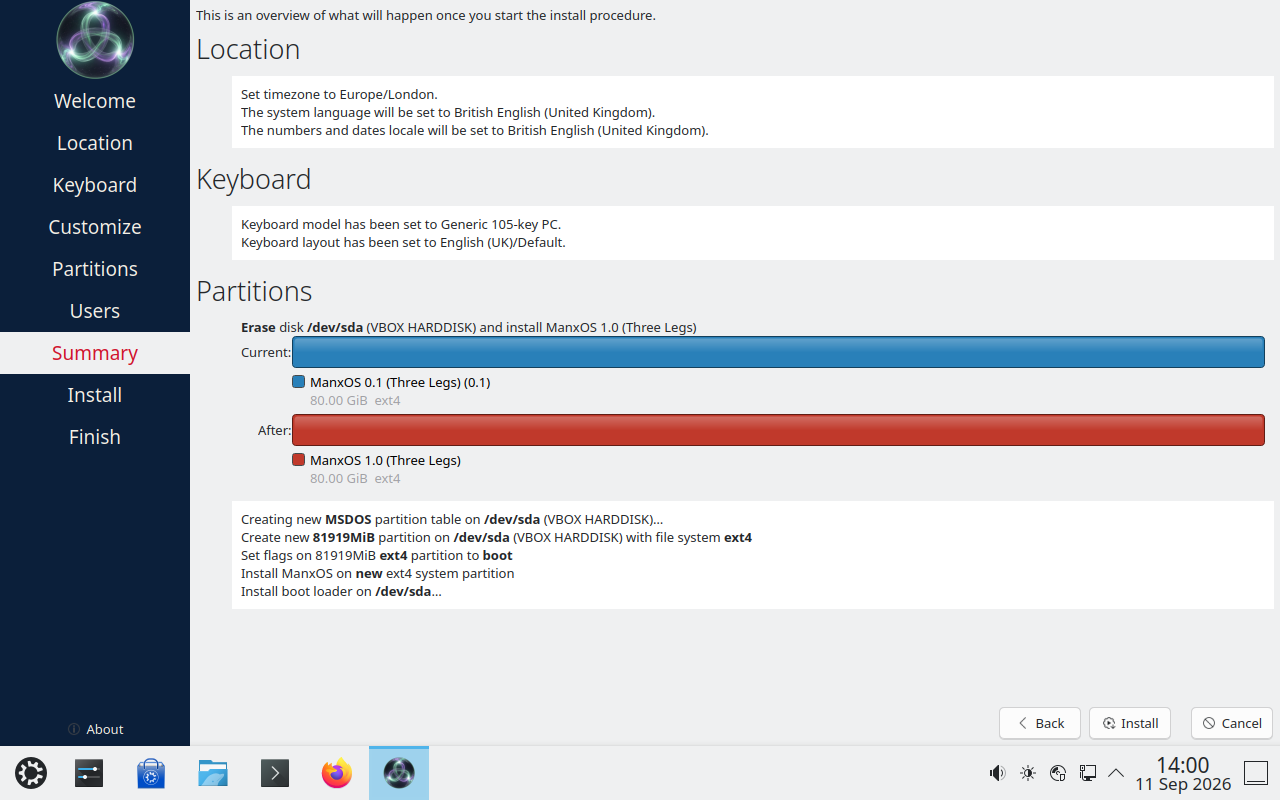
This is your last look before anything is written to the disk. Read the summary — especially the partition plan. If something is wrong, click Back. When it looks right, click Install.
Step 8 — Installing
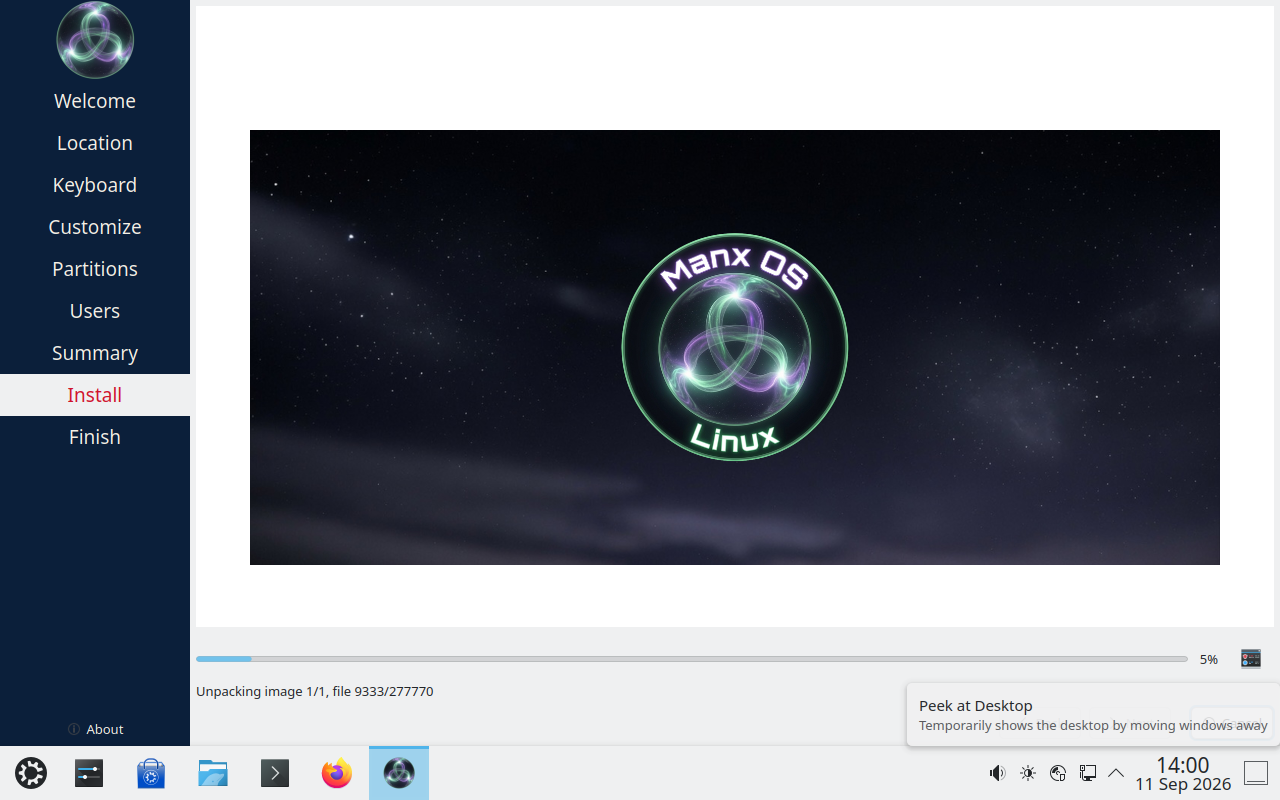
ManxOS copies itself onto your computer. This can take a few minutes. Leave the machine plugged in and wait for the progress bar to finish.
Step 9 — All done
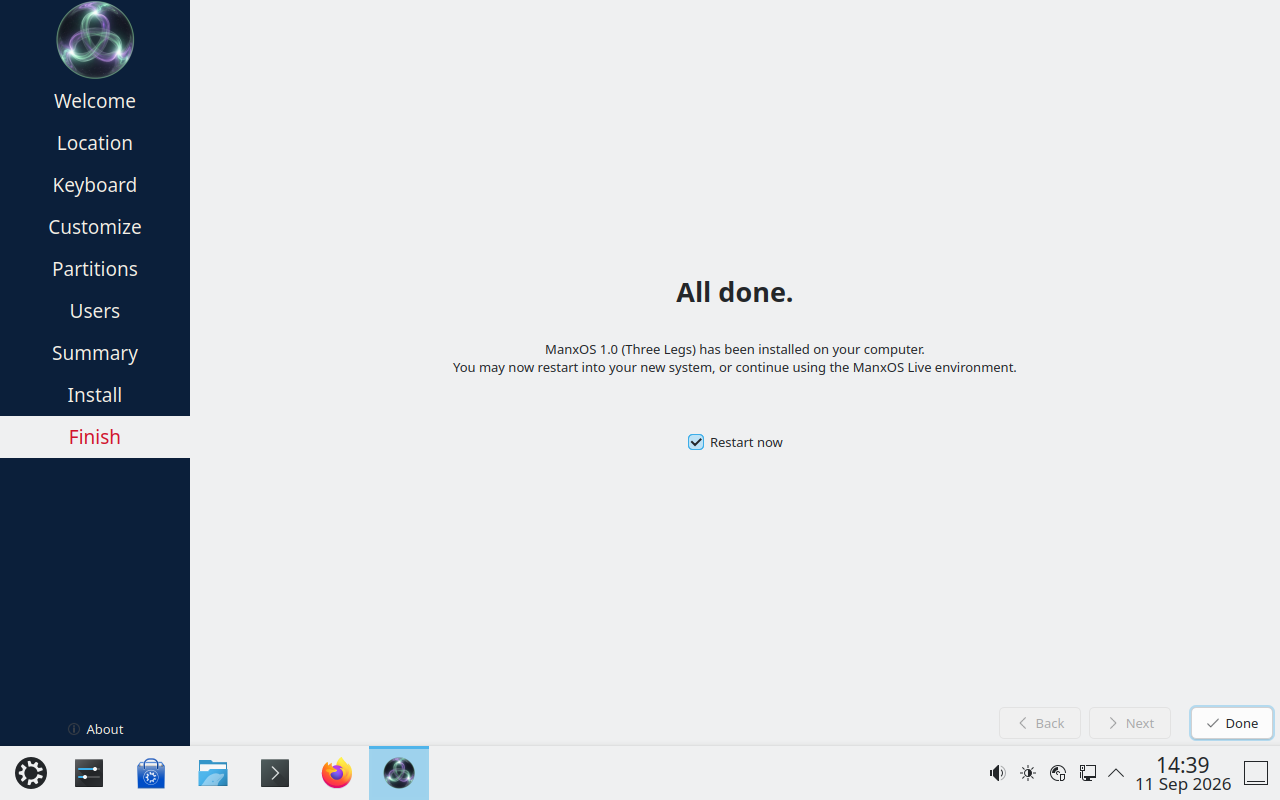
When you see All done, ManxOS is installed. Keep Restart now ticked if you want to boot into your new system straight away, then click Done. Remove the USB stick when the computer asks you to (or as it restarts).
Step 10 — Sign-in screen
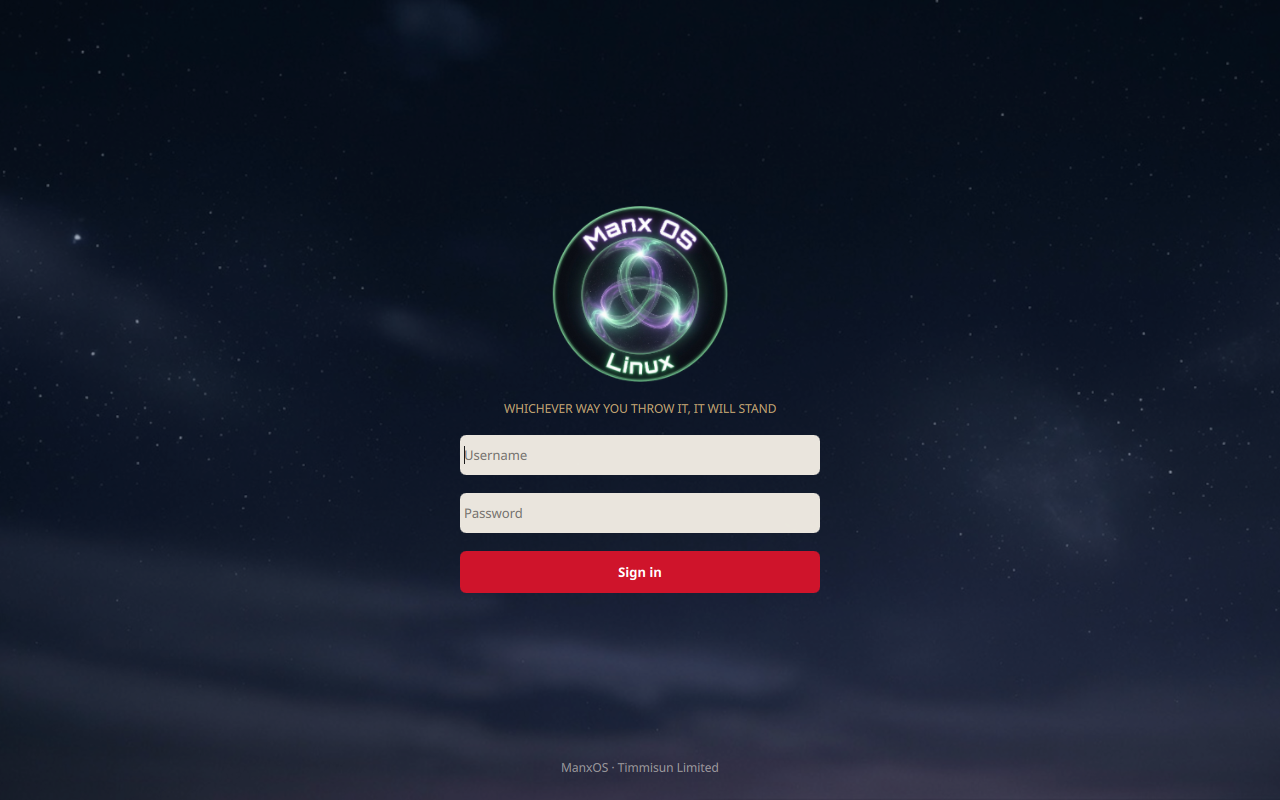
After restart you should see the ManxOS sign-in screen with the Three Legs logo and the motto Whichever way you throw it, it will stand.
Step 11 — Sign in
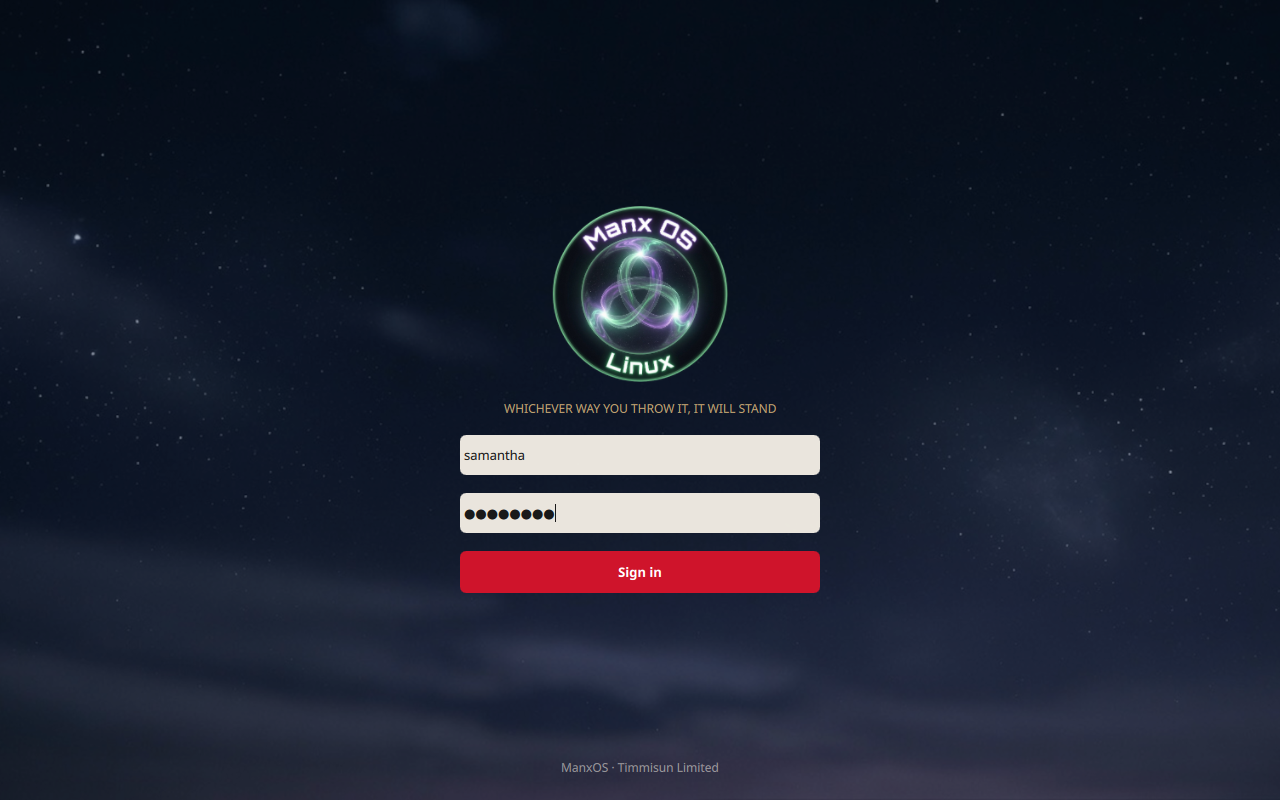
Type the username and password you chose during setup, then click Sign in.
Step 12 — Welcome page
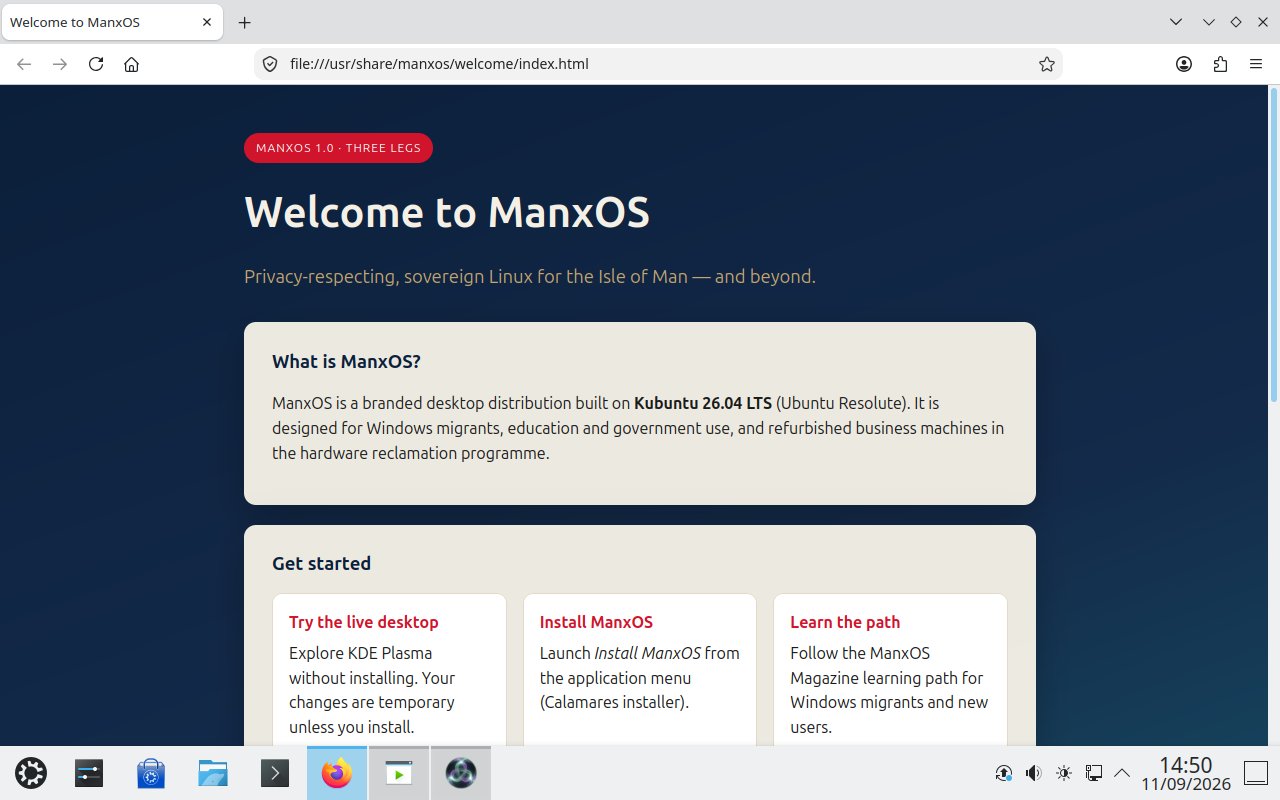
You may see a short Welcome to ManxOS page with tips for trying the desktop, installing (if you are still on live media), and learning more. You can close the browser when you are ready to explore.
Step 13 — Welcome Center
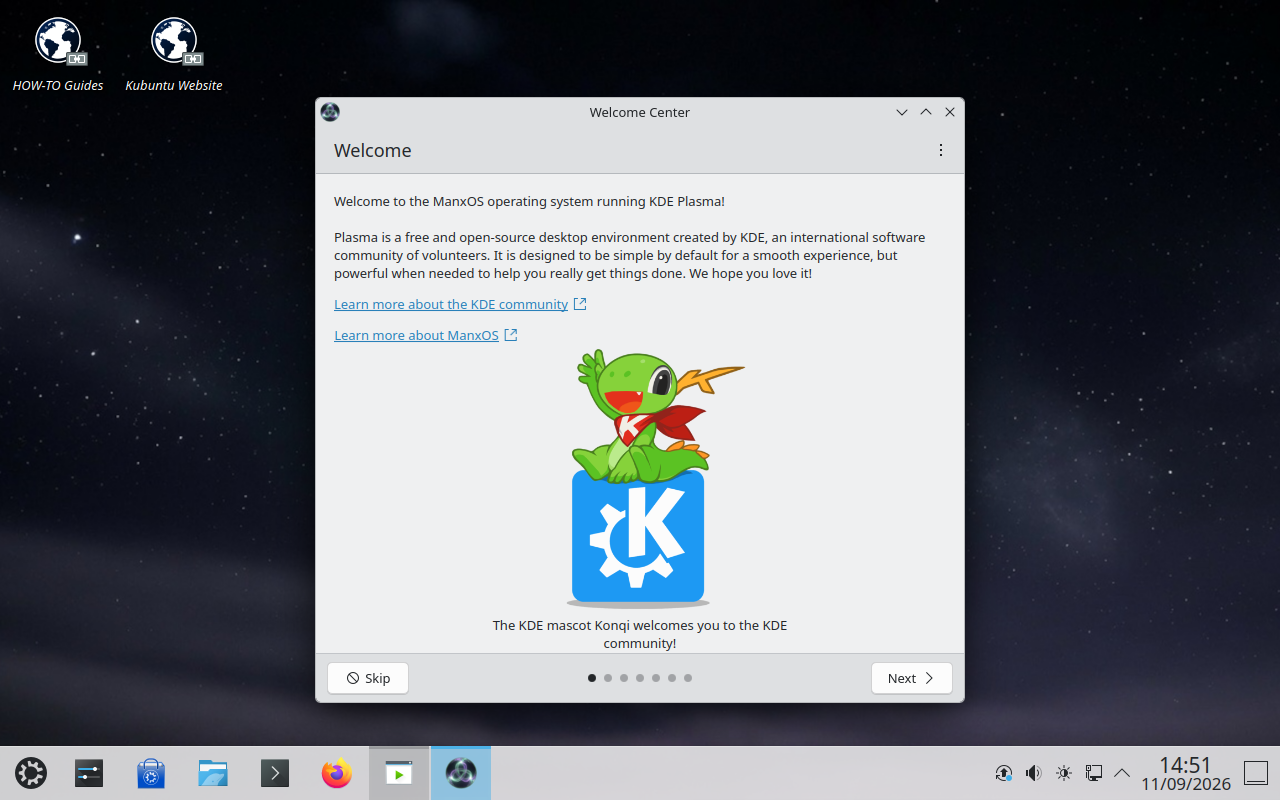
Plasma’s Welcome Center introduces the desktop. Click through with Next, or press Skip if you prefer to dive straight in.
Step 14 — Turn on the firewall?
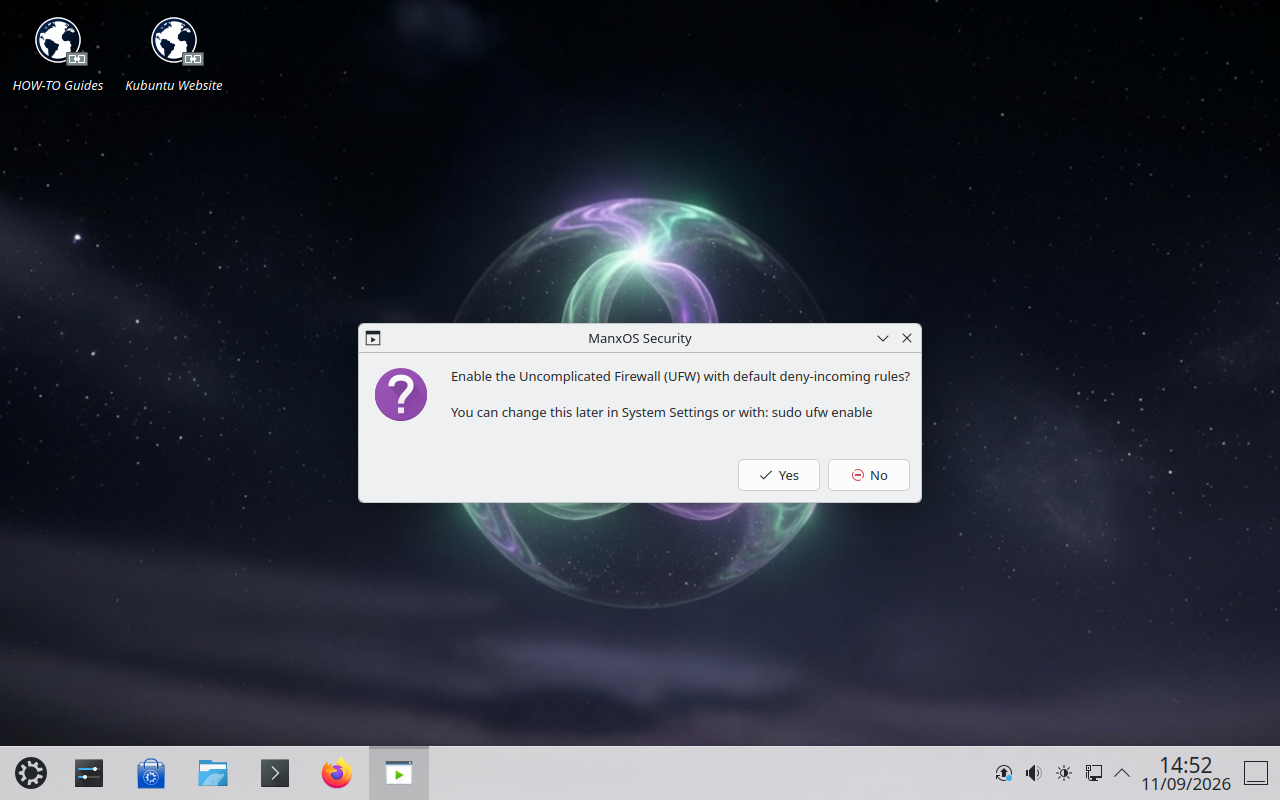
ManxOS may ask whether to enable the firewall (UFW). For most home and office machines, choose Yes. You can change this later in System Settings.
Step 15 — Open the application menu
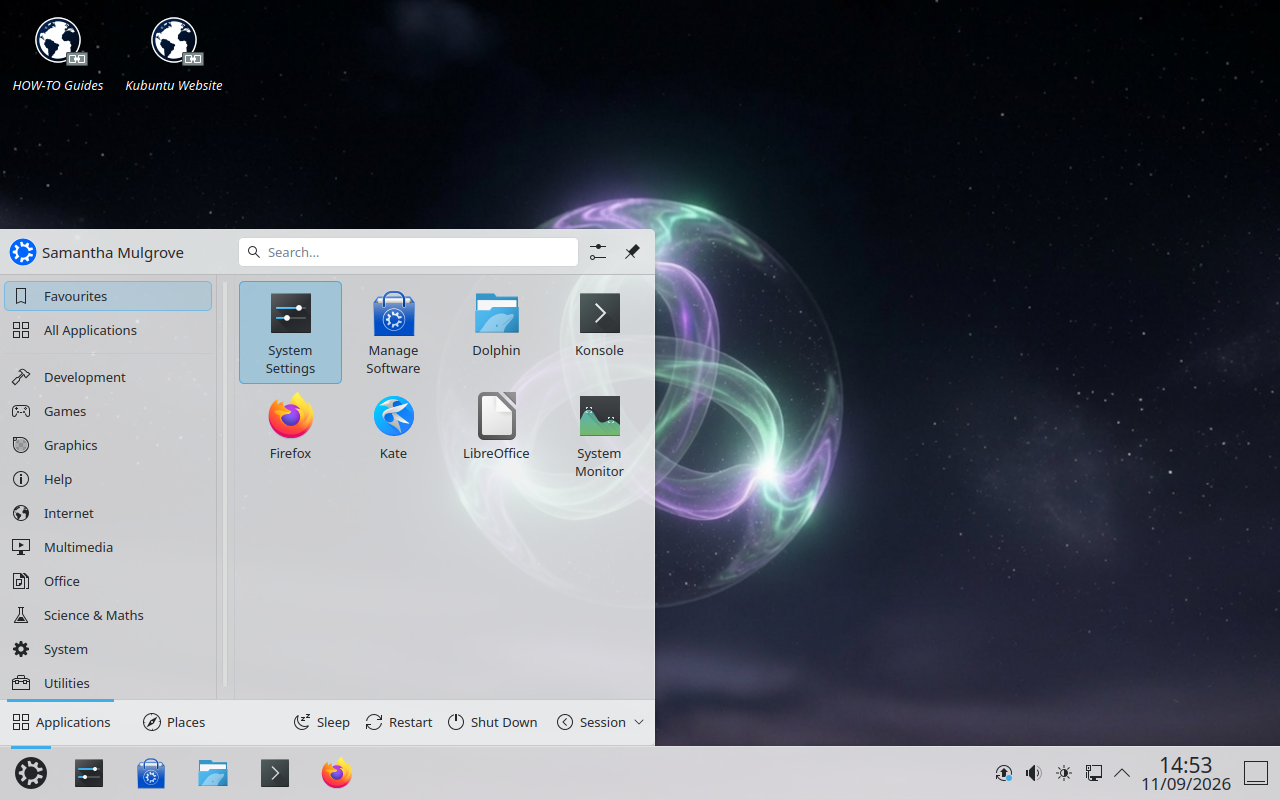
Click the menu button at the bottom left to find your apps — Settings, software centre, files, browser, and more. This is your everyday starting point.
Step 16 — About this System
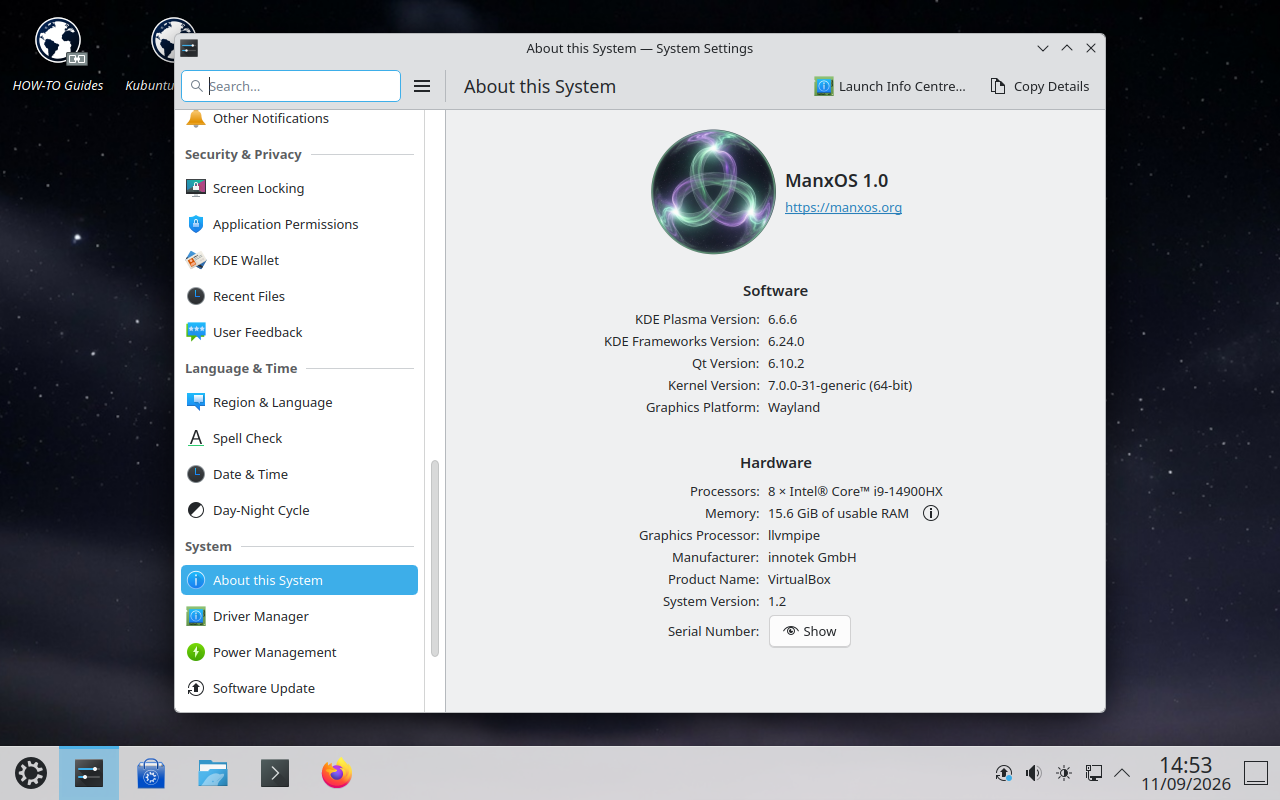
Open System Settings → About this System to confirm you are running ManxOS 1.0. Congratulations — you are up and running.
What next?
- Run updates when prompted, or open a terminal and use your usual update tools.
- Browse the simple install guide for USB writing, Secure Boot tips, and dual-boot notes.
- Visit the documentation hub or community if you get stuck.
Welcome aboard.